Desktop Tool
Audio Forge
Batch audio conversion and metadata management for running an independent record label. Built because existing tools do conversion OR metadata, not both.
Role
Design & Development
Timeline
2023 - Present
Stack
Status
In Active Use
The Problem
Running Cold Soul Records (my independent label since 2020) means converting audio constantly. Every release needs multiple formats: WAV for archival, FLAC for audiophiles, MP3 for streaming platforms, OGG for game engines. Each file needs accurate metadata — artist, album, track numbers, artwork.
Existing tools fall into two camps: converters that ignore metadata, or taggers that can't batch convert. I was spending hours on what should be a five-minute task, jumping between applications, copy-pasting the same information, and inevitably making mistakes that only surfaced after upload.
I needed one tool that did both jobs well, optimized for the specific workflow of releasing music.
The Solution
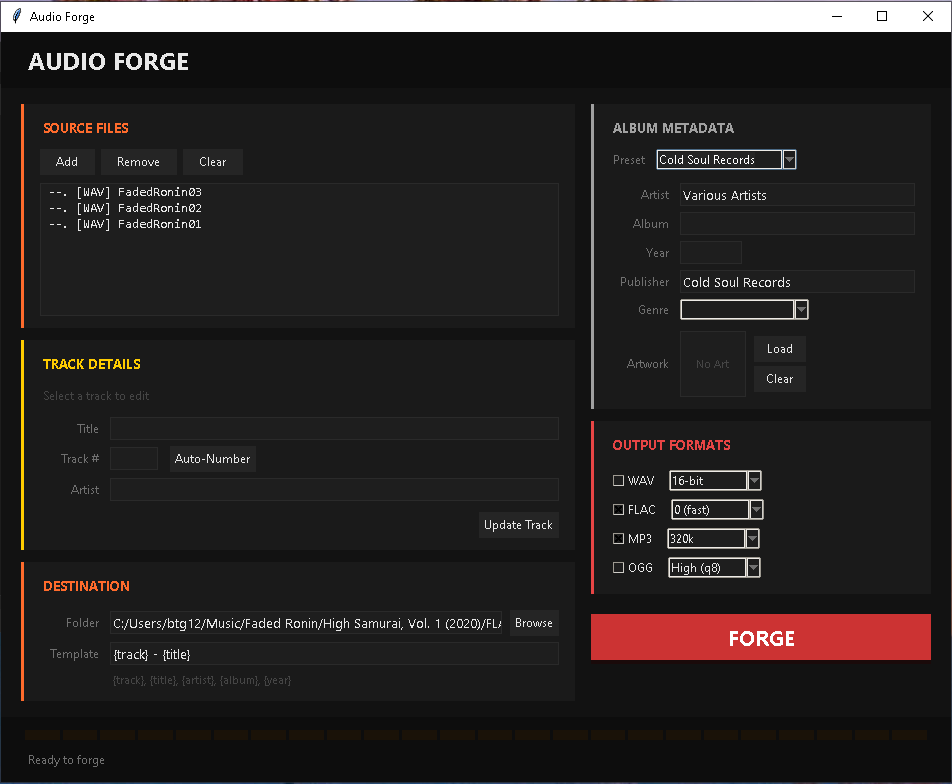
Audio Forge is a desktop application that handles the complete workflow:
- Import — Drag audio files or folders. The app scans and displays everything in a sortable list.
- Configure Metadata — Album-level info (artist, album name, year, artwork) applies to all tracks. Track-level info (title, track number) is individual.
- Select Output Formats — Choose any combination of WAV, FLAC, MP3, OGG. Set quality/bitrate per format.
- Forge — One click converts everything, embeds metadata, names files according to template, and organizes into folders.
Design Decisions
Two-Column Layout
Left column shows files and per-track details. Right column shows album metadata and output settings. This mirrors the mental model: individual tracks on one side, shared album info on the other. No tabs, no hidden panels — everything visible at once.
One Primary Action
The big red FORGE button dominates the interface. Everything else is configuration — important, but secondary. When you're ready, there's no ambiguity about what to click. The button even shows processing progress as a visual fill.
Template System
Output filenames use templates like {track} - {title}.mp3. Power users need this flexibility — some platforms want "01 Song Name", others want "Artist - Song Name". One setting, infinite configurations.
Presets
A "Cold Soul Records" preset auto-fills publisher, genre, and artwork folder path. For a label releasing monthly, this eliminates repetitive data entry. Presets are saved and can be shared across machines.
Auto-Number
One button assigns track numbers based on list order. Drag to reorder, click Auto-Number, done. Small feature, massive time savings when dealing with 15+ track albums.
What I Learned
The first version tried to do too much. I added EQ controls, normalization options, audio effects. Feature by feature, the interface bloated and the core purpose got lost.
I cut all of it. Audio Forge now does one job: convert formats and embed metadata. If I need EQ, I use a dedicated audio editor. If I need normalization, I use a mastering tool. Each tool should do one thing well.
Scope creep kills utility software. The best tools are opinionated and focused.